You’re on the list
We’ll write to when veeero is on the App Store.
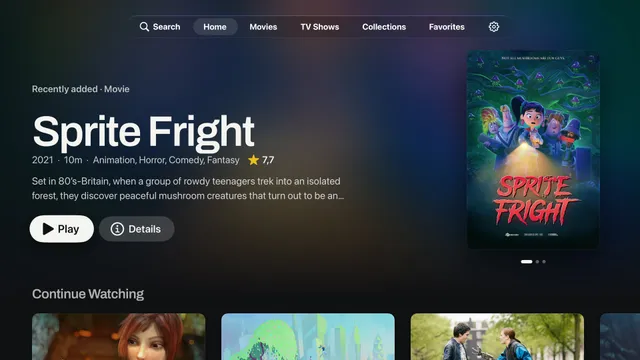
Browse movies and shows, resume where you stopped, and switch audio and subtitles from the Siri Remote.
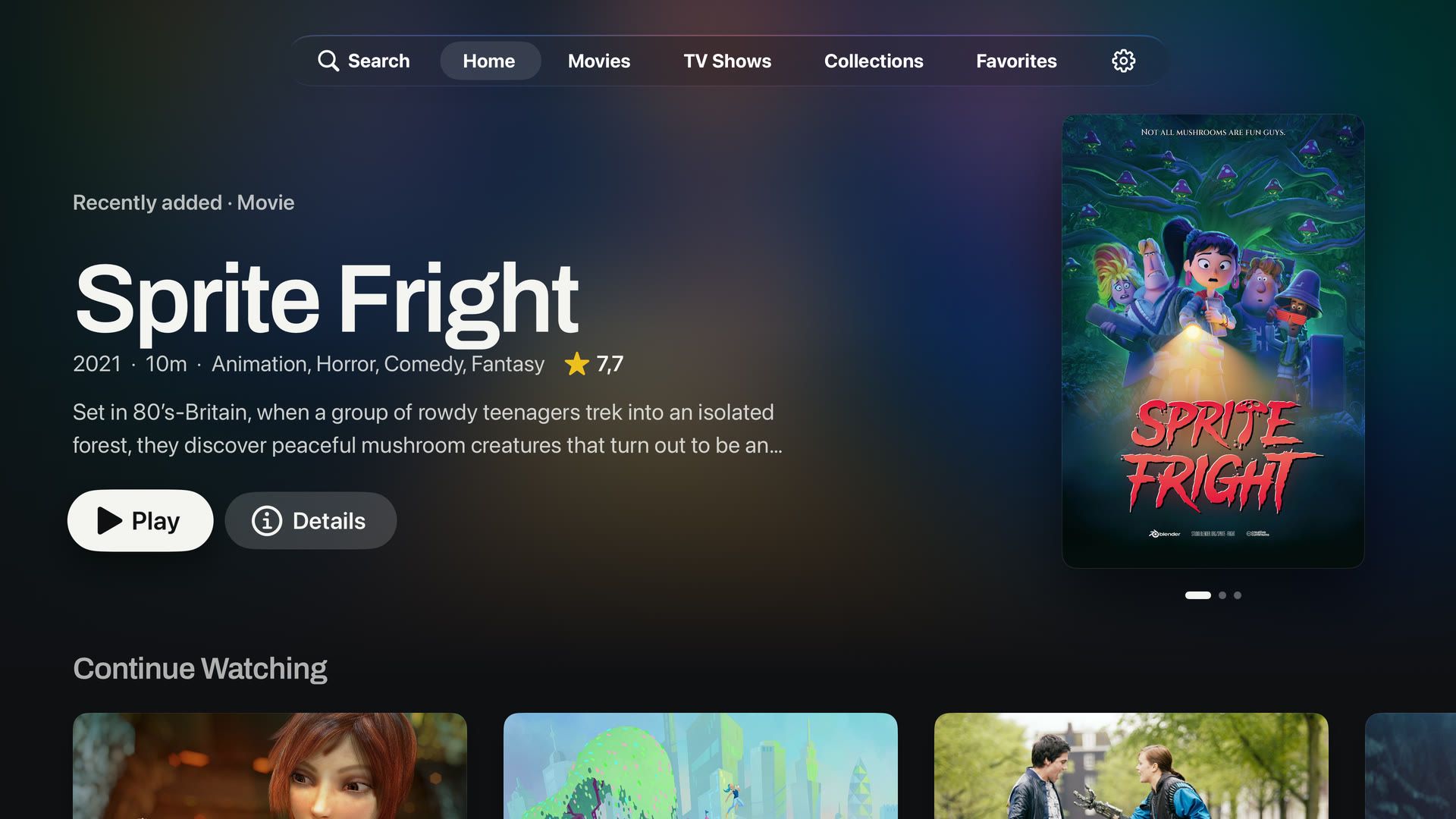
What veeero does, in the order you’ll use it.
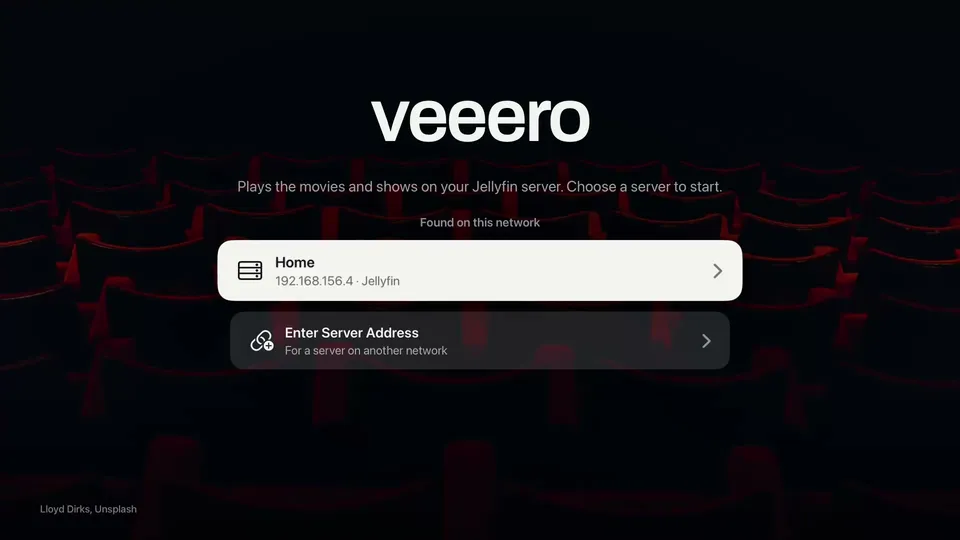
Servers on your home network are listed on the first screen. For a server somewhere else, type its address. You sign in with your Jellyfin username and password; there is no veeero account to create.
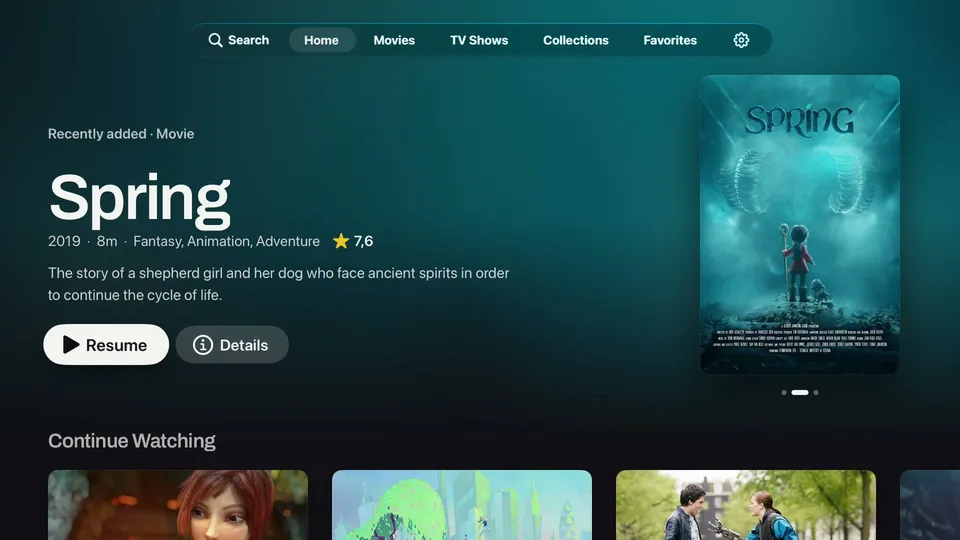
Home starts with Continue Watching, then Next Up and recently added titles. Play positions are stored on your Jellyfin server, so something you paused in another Jellyfin app resumes at the same point here.
Movies and TV Shows open as poster grids. The row above the grid sorts by date added, title, release date or rating, and filters by watched state and genre. Changes apply at once, and a count shows how many titles match.
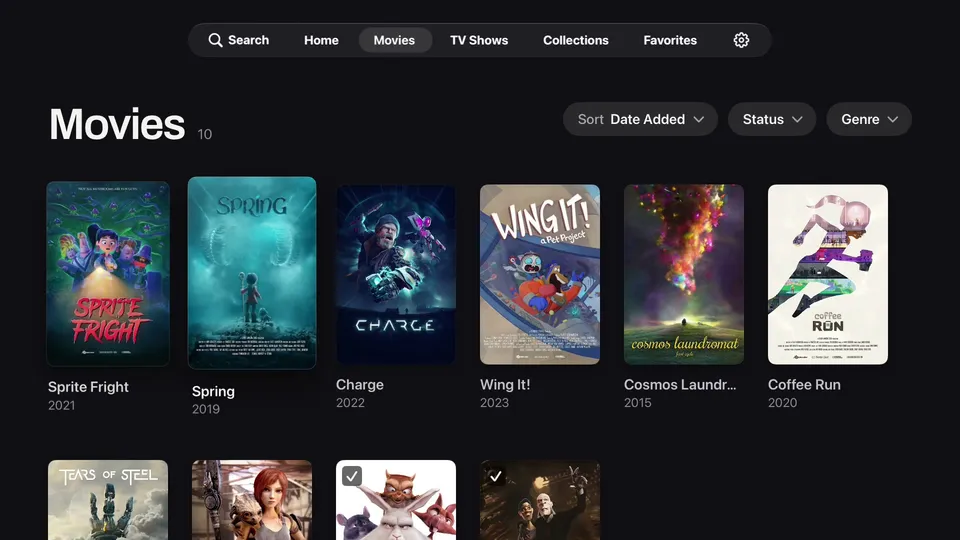
Collections you’ve set up in Jellyfin get their own tab, each with its name, description and number of titles. Favorite a movie or show from its page and it appears in Favorites, split into Movies and TV Shows. Both are read from and saved to your server.

A movie’s page shows the year, runtime and genres with a short overview, then the cast and crew. If you’ve started it, a bar shows how far you got and the main button resumes. Mark as Watched and Favorite sit next to it; Play from Beginning is in the More menu.

On a show’s page, the main button plays the next episode you haven’t watched and names it, for example Resume S1 · E4. Seasons sit in a row above the episodes, and each episode shows whether you’ve watched it and how much is left.

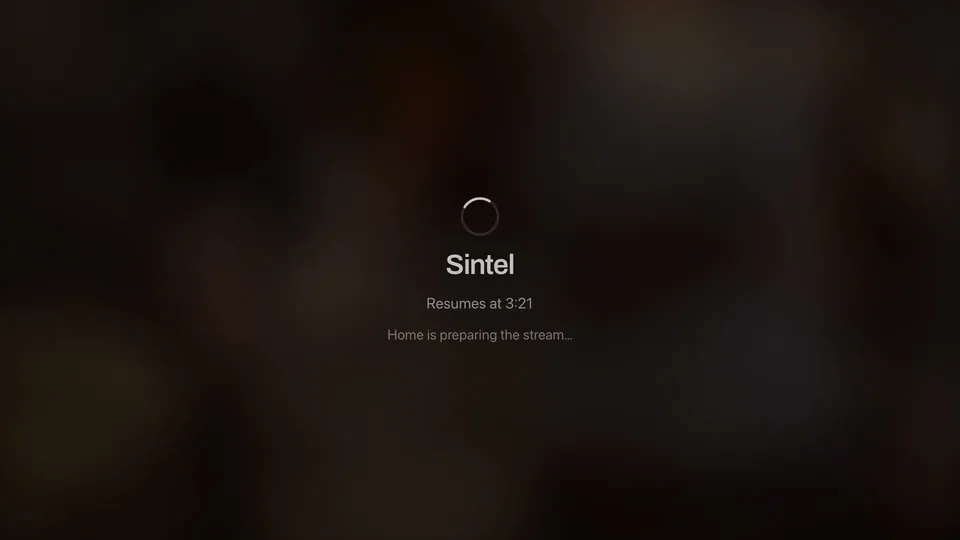
Playback starts where you left off. Swipe down on the remote for audio tracks, subtitles and subtitle style. At the end of an episode the next one starts after an 8-second countdown, which you can cancel.
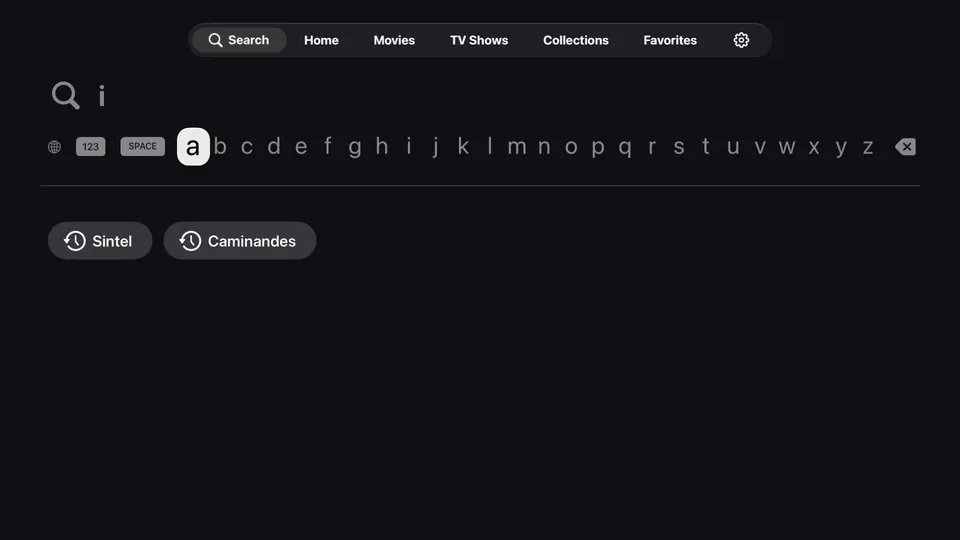
Search covers movies, shows and people on your server, with results grouped by type. A person’s page lists only the titles you can play. Recent searches stay under the keyboard.
veeero isn’t on the App Store yet. Leave your email and we’ll send one message when it is.